Skip to try-on tools
Your photo fitting studio
PricingYearly ~20% offLoading…

Virtual try on.Made personal.

Your photo, a little curiosity, a new silhouette. Find the details that make a look feel like you.

Try a Garment on Your Photo

Start with your photo and a garment.

JPG, PNG or WebP · 10 MB per image · 20 MB total · up to 40 megapixels for local preview.

JPG, PNG or WebP · 10 MB per image · 20 MB total · up to 40 megapixels for local preview.

Explore this look

Output resolution

Unavailable resolutions are not supported by the current model.

Credits for this generation: 1

By clicking Generate preview, you confirm that you have permission to use these images and agree to AI processing for this preview.

Selected photos stay local until you submit. Submission uploads private images to R2 and sends time-limited access to the AI service.

Checking service availability…

Generation needs an enabled image provider, private R2 storage and complete model/callback configuration.

My generations ↗

Your fitting mirror

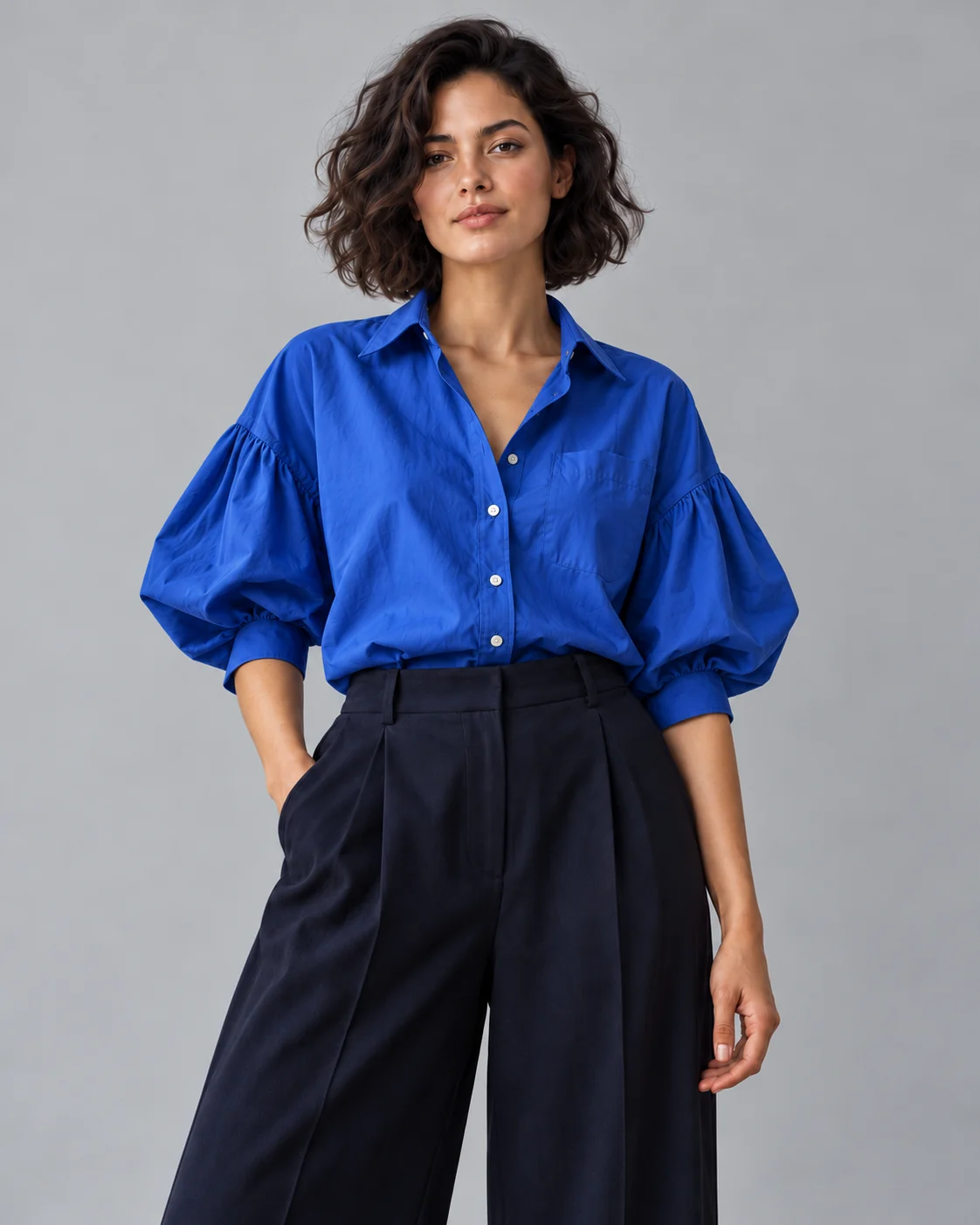
Virtual try on clothes example: cobalt blue shirt with gathered sleeves on the original portrait
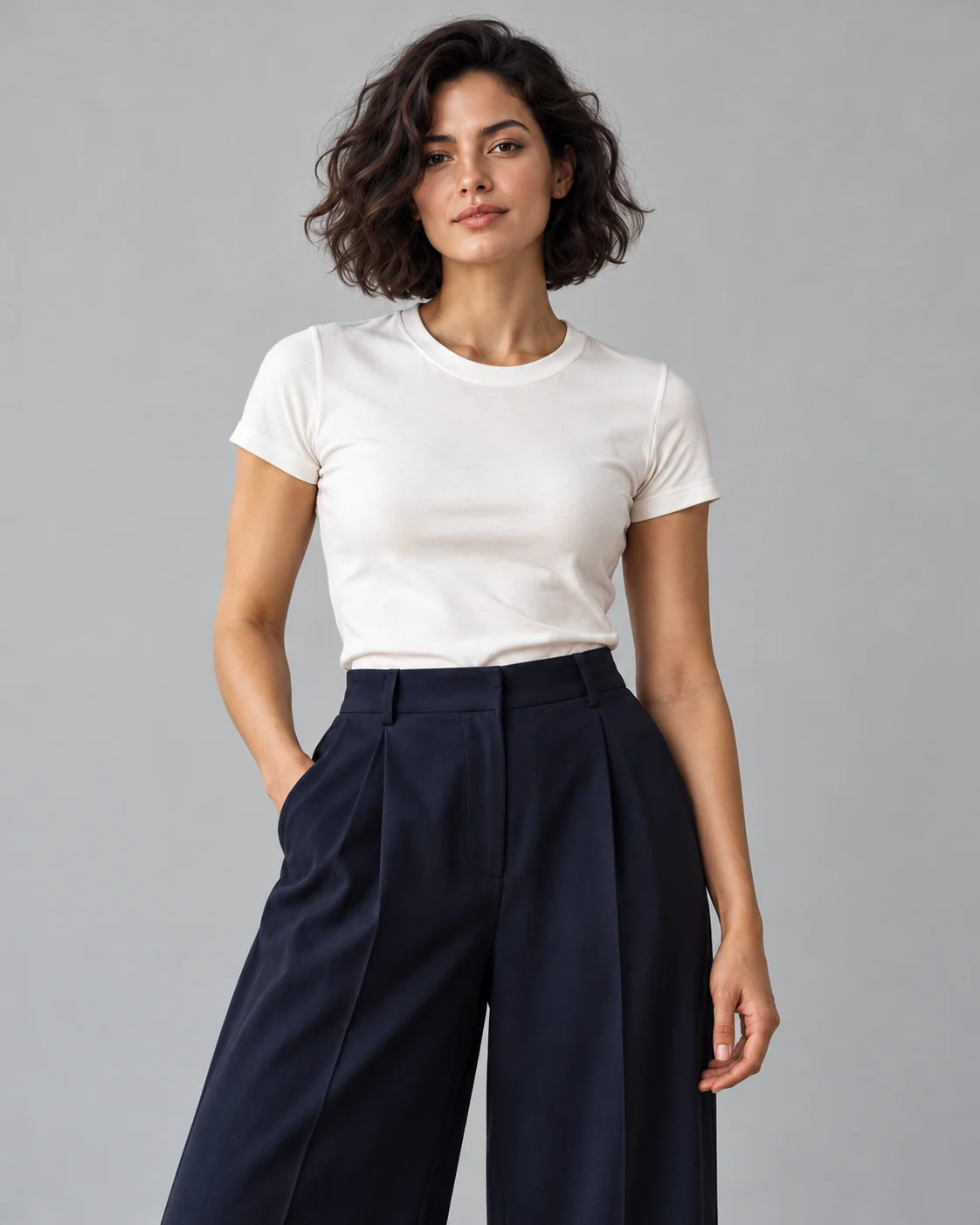
Virtual try on clothes original: source portrait in a white T-shirt and navy trousers
Original photoPreview

AI-generated example images. Drag or use arrow keys to compare.

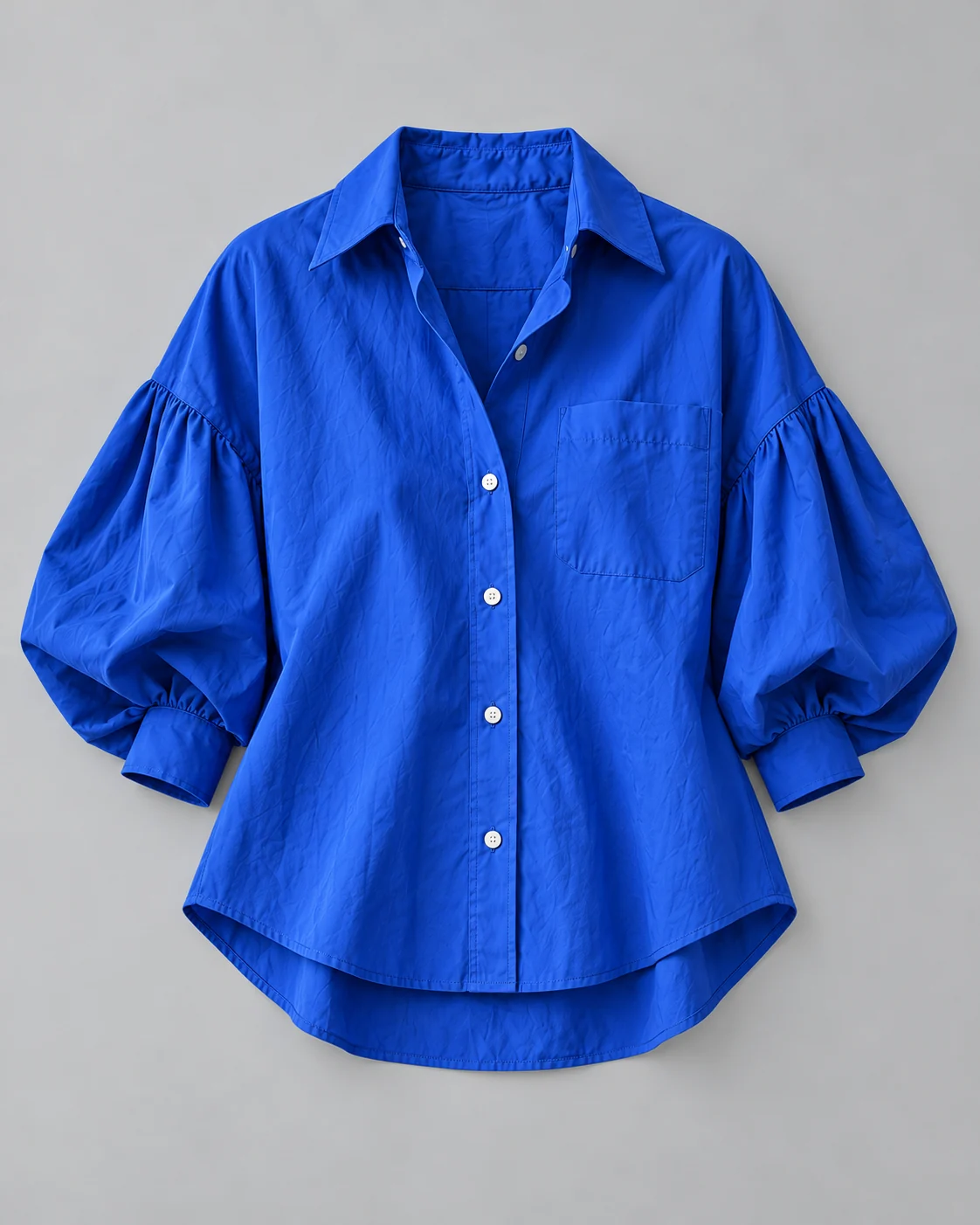
Virtual try on clothes reference: cobalt cotton shirt reference with a pointed collar and gathered sleeves
The piece

Cobalt cotton shirt

Example preview
Download example image ↓Example image for appearance comparison.

Example preview

Virtual try on clothes example: cobalt blue shirt with gathered sleeves on the original portrait
Virtual try on clothes original: source portrait in a white T-shirt and navy trousers

AI-generated example images. Drag or use arrow keys to compare.

Choose a Virtual Try On Tool

Choose a virtual try on guide by the area you want to explore. Each task starts with a different kind of photo.

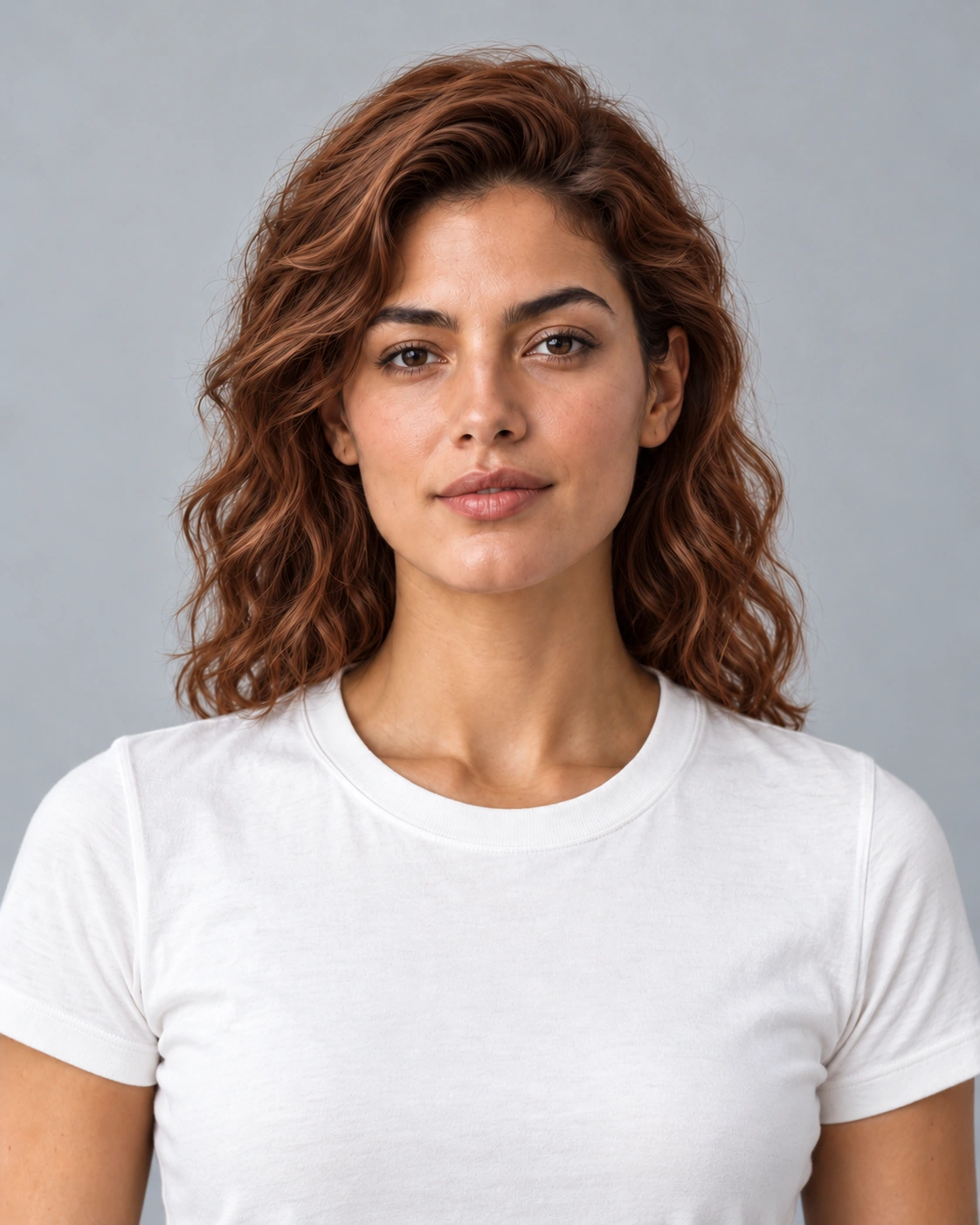
Virtual try on original portrait in a white T-shirt and navy trousersOriginal image
Virtual try on starts with a clear original photo of the relevant area.
Virtual try on garment reference showing a cobalt shirt with gathered sleevesVisual reference
A virtual try on reference should show the item and its important details.

Choose a Virtual Try On Task

Virtual try on starts with a specific question about a garment, accessory or hairstyle. Match the photograph to the area you want to compare: clothing needs body coverage, rings need a close hand photo, and hair or glasses need a portrait. Decide whether you are comparing color, outline or a particular item before collecting references. One clear question makes the difference easier to judge and helps you avoid changing the portrait, lighting and style all at once.

Match the photo to the look

For virtual try on, the most useful picture shows the edges a change will affect. A jacket needs visible shoulders and arms; a ring needs a distinct finger outline; glasses need a clear bridge and both eyes. Leave space around hair when considering a longer shape or fringe. Check these details before choosing files. A sharp photo of the wrong area is less useful than a simple, well-framed image that answers your actual style question.
Explore Looks You Can Preview

These virtual try on examples compare clothes, accessories and hair. Use each original and preview to explore the details that matter to your look.

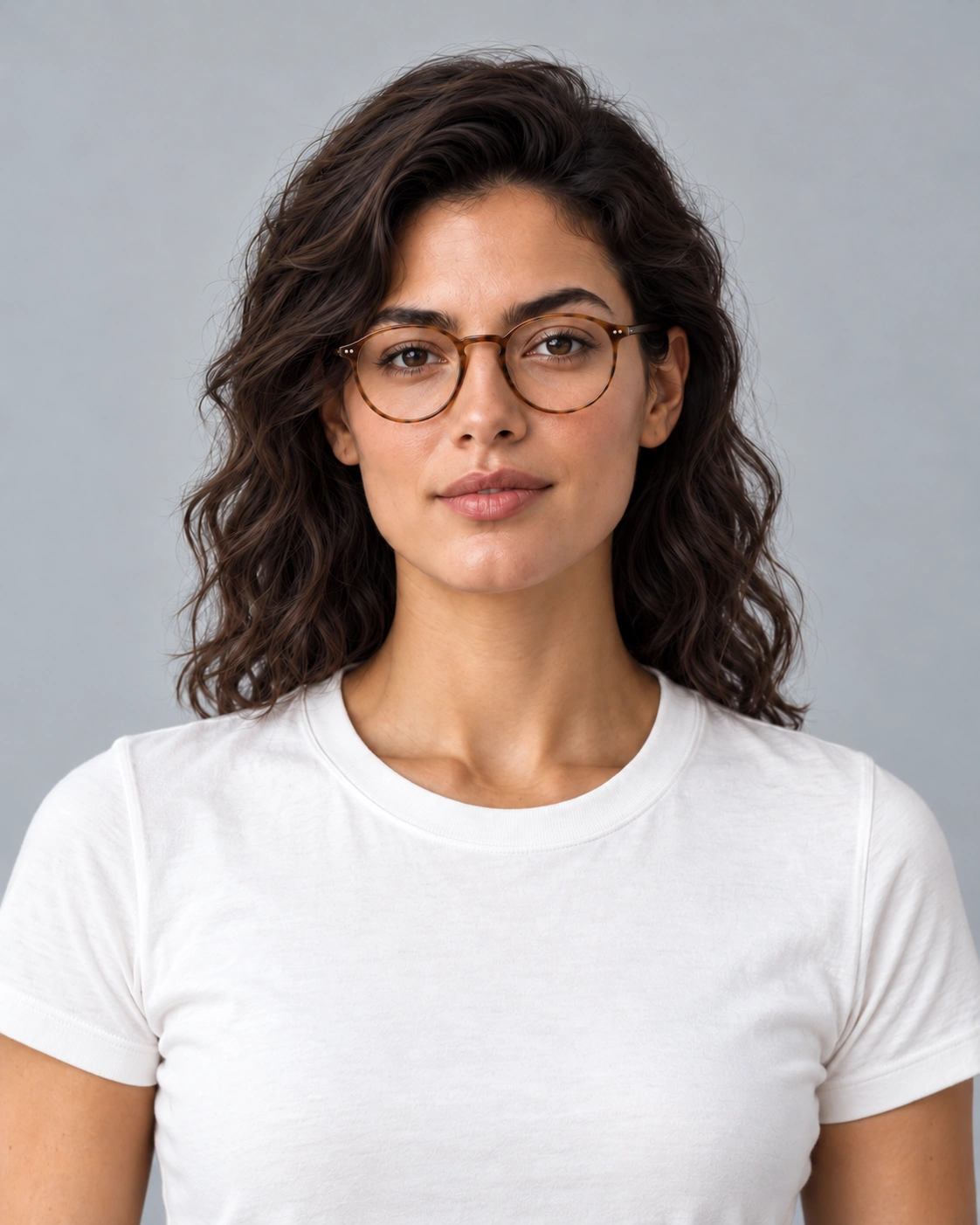
Virtual glasses try on example: round tortoiseshell glasses with clear lenses on a front-facing portraitPreview
Virtual try on glasses example: compare the frame shape with the original portrait.
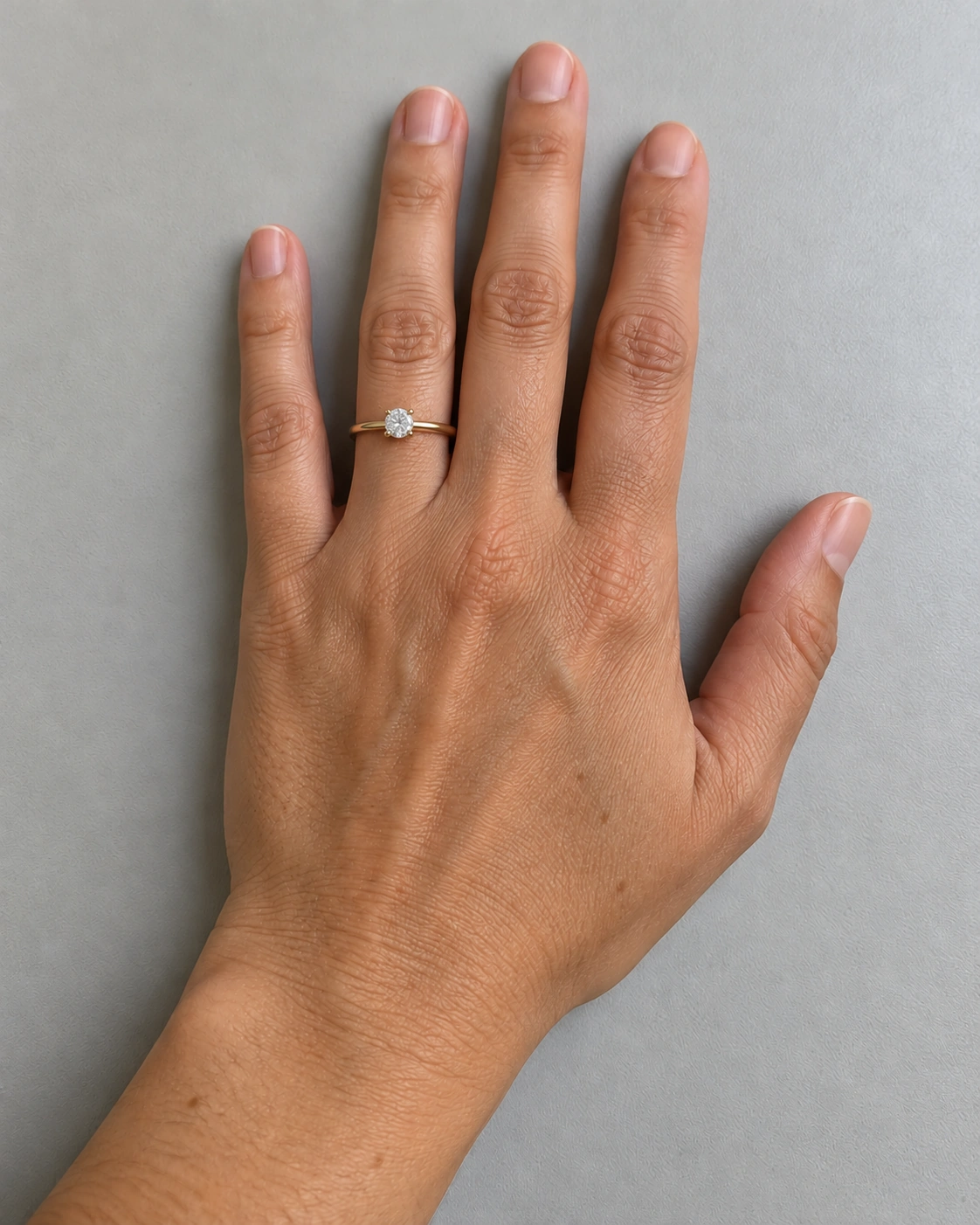
Virtual ring try on example: gold solitaire ring on the ring fingerPreview
Virtual try on ring example: compare the design on the same hand.
Hair color try on example: copper-auburn hair on the same portraitPreview
Virtual try on hair color example: compare the shade with the original portrait.

Clothes and Outfits in Virtual Try On

Use virtual try on to compare a particular garment with your own silhouette. Bring a reference that clearly shows the item, including its collar, sleeves and hem. This is a different task from asking for an outfit idea in words: the reference gives you concrete details to inspect. Compare seams, closures and the boundary between layers before judging the overall look. A complete outfit photograph can help describe a direction, but it is not the same as combining several separate garment images.

Glasses and Rings in Virtual Try On

Accessories depend on the area they sit on. Glasses need a front-facing portrait with the eyes and bridge visible; rings need an unobstructed finger and a useful view of the band and setting. Neither task is a measurement service. A frame that appears balanced in an image can still be uncomfortable, and a ring that appears proportional can still be the wrong size. Use appearance exploration to prepare questions for a retailer, not to replace physical fitting or verified product specifications.

Hair Ideas in Virtual Try On

Color and shape are separate decisions. Hair color try on concerns a shade on your existing hair; hairstyle try on concerns length, outline, layers or fringe. Choose the color guide if the cut should stay broadly the same, and the hairstyle guide if you want to discuss a different shape. A screen cannot predict dye chemistry, hair density or daily styling effort. Keep the starting portrait consistent when comparing ideas, and take the references to a stylist who can assess your actual hair.

How Photo-Based Try-On Works

A virtual try on comparison starts with a readable input, a clear reference and consistent photography. Prepare the pictures before judging the change.

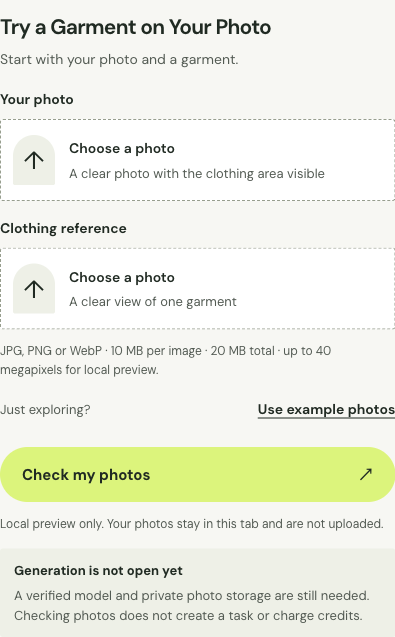
Virtual try on clothing upload interface with person and garment fields
Photo and garment-reference selection in the studio.

Choose the right tool and photo

Start with an image you have permission to use. Keep the relevant body area in focus, use even light and avoid filters that alter facial features or blur edges. Leave room around the subject for the look you want to compare. Photo selection accepts JPG, PNG and WebP, up to 10 MB per image and 20 MB combined, with a 40-megapixel limit. Resize a large original before selecting it, and keep an unedited copy for comparison.

Set up your preview

A virtual try on reference should make your preference easy to understand. For clothing, glasses and rings, choose a clear view of the item rather than an advertising image dominated by another person. For hair, show the cut or shade you want to discuss. Keep the reference separate from your own photo so you can inspect each one at full size. Check orientation, crop and visible detail before moving on; a small thumbnail can hide a missing cuff, blurred ring setting or cropped hairline.

Compare the result and its limits

Compare virtual try on images at the same scale. Start with the overall outline, then inspect the edges and smaller details that matter to you. Use the slider or larger view to check alignment, and keep the original visible when assessing facial features, hands or a garment pattern. Separate an attractive composition from an accurate representation of a product. Use the example images to compare a change in appearance; a visual comparison does not establish physical fit or measured accuracy.

What AI Previews Can and Cannot Tell You

Use virtual try on for appearance exploration, while checking measurements, materials and real-world outcomes separately with the relevant professional.

Visual exploration versus fit and measurement

A virtual try on preview is a visual aid. It does not establish garment measurements, lens prescriptions, ring circumference or a salon color formula. Fabric stretch, frame pressure and the way a ring passes over a knuckle are physical properties that a photograph cannot capture. Use retailer size guides and actual measurements for purchasing decisions. Keep the two questions separate: whether a style interests you, and whether the physical item meets your needs. The photo tools do not provide a calibrated body scan or live camera fitting.

Image quality, identity and product detail

Virtual try on images deserve a close look before you rely on them. Check hands, facial contours, hairlines, logos and small patterns against the original. An edit may look convincing at thumbnail size while changing a finger, moving an eyebrow or redrawing lettering. Enlarge the area that matters and compare both images at the same zoom. If identity or an important product detail changes, set that image aside. Keep an unedited portrait and the original product reference available for every comparison.

Your Photos, Credits and Results

Keep control of your virtual try on photos, and review credit and download details before making a purchase.

Virtual Try On Photo Handling

Choose photos you own or have permission to use, and check the background for information you do not want to share. Selected files stay in this tab during photo preparation; remove them or leave the page to clear that selection. Keep your own original if you want to revisit a comparison later. The privacy policy explains the service terms for personal information. A public style example and a personal photo serve different purposes, so check the image label before saving or sharing it. When you submit a generation task, the images are uploaded to private R2 storage and made available to the AI service through expiring access links. Delete a finished task in My generations to remove its images.

Virtual Try On Credits and Downloads

Review the selected plan, credit quantity and billing period on the pricing page. For virtual try on, check the tool status and any stated cost before committing to a paid request. Selecting or checking a photo does not use credits. Save only the image you intend to keep, and distinguish the labeled example download from a personal result. When reviewing an account record, use its task or order details to understand what was requested rather than inferring the cost from a gallery image.

Frequently asked questions

Can I use my own photo for virtual try on?

Yes. Choose a photo you have permission to use and keep the relevant area visible. For virtual try on clothes, include enough of the body for the garment; for glasses and hair, use a clear portrait; for rings, use a hand photo.

Which virtual try on tool should I choose?

Choose clothes for a garment reference, glasses for frame appearance, rings for hand jewelry, hair color for a new shade, or hairstyle for a different cut. Keep color and shape comparisons separate when you want to understand which change you prefer.

Is there a free generation option?

Browsing the guides and checking selected photos do not use credits. Check the pricing page and the selected tool for any stated generation cost or trial offer before submitting a paid request.

Does a preview predict real fit or color?

No. A photo-based preview can help you compare visual ideas, but it does not measure fit or guarantee physical colors, dimensions or styling outcomes. Verify those details with the retailer or relevant professional.